A broadcast sends one approved template to many people. Before anything goes out, i-Connect shows who it will reach, who it leaves out and why, and roughly what Meta will charge.
Create a broadcast
Go to Broadcasts → New broadcast (Owner, Admin or Manager). The wizard has four steps, with a summary of reach, template, schedule, estimated cost and the daily limit left beside every step:
- Audience: include and exclude segments and tags.
- Message: pick the number, then an approved template from that number's WhatsApp account. Map each variable to a contact field or fixed text, with a fallback. The preview cycles through real people in your audience, with their numbers masked.
- Sending: now, or at a date and time (IST) up to 30 days ahead. Optionally set a throttle (messages per second).
- Review: the counts, any warnings in plain words, and a checklist.
Audience: who's in and who's left out
Everyone your segments and tags match is split into groups that don't overlap:
- Opted out of this message type.
- No consent for this message type: for marketing, anyone not opted in (see consent rules).
- Not reachable on WhatsApp: numbers that failed repeatedly as undeliverable.
- Eligible: everyone else. These are the recipients.
The same rules run again when each message is sent, so the count you confirm and what goes out agree.
The estimate
- Estimated cost: worked out per recipient country from Meta's rates for the template's category. Markets without a rate are listed. Meta bills the charges to your WhatsApp account; the figure is an estimate.
- Daily limit left: how much of your business portfolio's messaging limit (unique people per 24 hours) is left.
- Warnings such as a low quality rating, a template with low quality, the send window, or markets with no rate.
Launch and approval
- Launching asks you to confirm in words. Above 1,000 recipients you type the number of recipients to confirm. If the count changed since you looked (for example someone opted out), you're asked to confirm the new count.
- Approval for large sends: at or above Approval needed above (recipients) in Settings → General (5,000 by default), a broadcast launched by someone who can't approve (a Manager) waits as Pending approval. An Owner or Admin approves it or sends it back with a reason. Nobody can approve their own broadcast. Set the threshold to 0 to turn approvals off.
Send window
Marketing messages only go out inside your send window: 09:00 to 21:00, every day by default, in your organisation's time zone (Settings → General → Sending rules). Messages that would go out outside it wait and go out when the window opens. Utility messages and inbox replies aren't held.
Frequency cap
To protect your number and your customers, each person gets at most 2 marketing messages every 7 days by default (Settings → General → Marketing cap). Anyone who has reached the cap is skipped for this broadcast and counted as skipped in the report. It applies to marketing from every source.
Pause, resume, cancel
- Pause stops further messages at once; Resume carries on from where it stopped. Cancel stops it for good. Duplicate copies it into a new draft.
- i-Connect can also pause a broadcast by itself, for example when your quality rating drops. See Delivery brakes explained.
The report
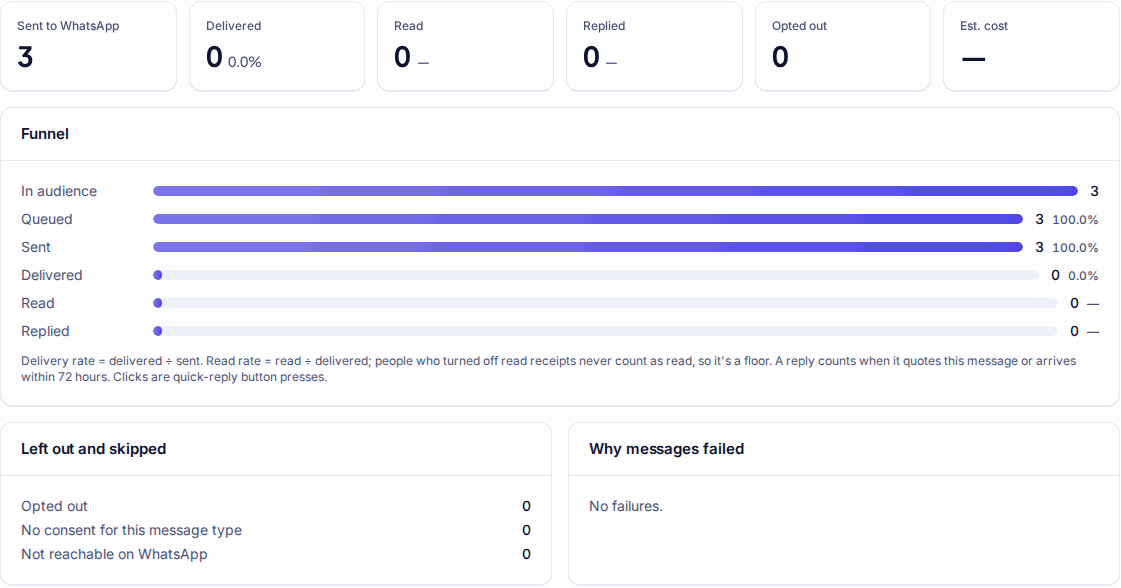
- Progress updates while it sends.
- Delivery rate = delivered ÷ sent. Read rate = read ÷ delivered; people who turned off read receipts never count as read, so it's a floor.
- A reply counts when it quotes the message or arrives within 72 hours. Clicks are quick-reply button presses and, for link buttons with Track clicks on, the first click on the link in each message (link previews and security scanners don't count).
- Left out and skipped and Why messages failed explain every missing message in plain words.
- The recipients table shows each person's outcome; Export CSV downloads it (with numbers masked as your settings say), and the export is recorded in the audit log.
Still stuck? Write to support@i-connect.world with your organisation's name and what you see on screen.