i-Connect sends and receives through the Official WhatsApp Business Platform (Cloud API). The number and its WhatsApp Business Account stay in your own Meta business portfolio; i-Connect only gets the access you give it.
Before you start
- You need the Owner or Admin role in i-Connect to connect or disconnect a number.
- There are two ways: Continue with Facebook (no IDs or tokens to copy) or Connect manually.
- Meta bills message charges to the WhatsApp Business Account's own payment method. Add a card in WhatsApp Manager → Payment settings before you send templates. Without one, replies within 24 hours of a customer's message go out only until the number's 1,000 free service messages for the month are used; after that Meta stops delivering them.
- A new organisation must be approved by our team before it can connect a number.
- Your plan sets how many numbers you can connect.
Our team can do this with you on a call. Write to support@i-connect.world.
Connect with Facebook
- Go to Settings → WhatsApp numbers and choose Continue with Facebook. If you already have a number, the options are under Add another number.
- Meta's window opens. Sign in with Facebook, then pick or create your business portfolio and WhatsApp Business Account.
- Add the number and its display name, and verify the number with the code Meta sends by SMS or call.
- When the window closes, i-Connect registers the number on the Cloud API and subscribes to its webhooks. This can take up to a minute.
- The report shows Number connected and a two-step verification PIN. It's shown once: keep it somewhere safe. Meta asks for it if the number ever moves to another provider.
- The number can't be in use on WhatsApp or the WhatsApp Business app on a phone. To keep using the Business app on it, choose Connect my WhatsApp Business app instead.
- Meta reviews the display name. Until it's approved, customers see the number instead of the name.
- If the window doesn't open, an ad or tracking blocker, Brave's shields or strict tracking protection may be blocking Facebook's sign-in. Allow it for app.i-connect.world, or use a private window, and try again.
Connect manually: the IDs and a token
You need admin access to the Meta business portfolio that owns the WhatsApp Business Account, and the number must already be added to that account in WhatsApp Manager and registered for the Cloud API. Connecting manually doesn't register it for you. You need three things from Meta. Copy them somewhere safe for the next step.
- WhatsApp Business Account ID. Meta Business Settings → Accounts → WhatsApp accounts → the account → ID.
- Phone number ID. WhatsApp Manager → Phone numbers → the number's ID. This is a long number, not the phone number itself.
- A system-user access token. Business Settings → Users → System users → Add (role Admin). Assign it
your app and the WhatsApp account with full control, then Generate new token with expiry Never
and these permissions:
whatsapp_business_managementwhatsapp_business_messagingbusiness_managementif Meta offers it: it lets i-Connect read your portfolio's messaging limit.
Connect manually in i-Connect
- Go to Settings → WhatsApp numbers and choose Connect manually.
- Paste the WhatsApp Business Account ID, the phone number ID and the system-user access token.
- Choose Check and connect.
i-Connect runs each check in order and stops at the first one that fails. If anything fails, nothing is saved; fix it in Meta and try again. The token is stored encrypted and is never shown again.
What each check means
| Check | What it confirms | If it fails |
|---|---|---|
| Access token | Meta accepts the token and it has both WhatsApp permissions. | "Meta says this token is not valid (expired or revoked)" or "The token is missing permissions: …". Generate a new system-user token with both permissions. |
| Number belongs to the account | The phone number ID is on that WhatsApp Business Account. | Check you copied the number's ID (not the phone number) from the same account. |
| Number details | i-Connect can read the number, its display name and its quality rating. | Meta's error is shown as is. |
| Webhook subscription | i-Connect is subscribed to the account's webhooks, so replies, delivery ticks and template updates arrive. | Usually a permission problem on the token or the system user's assets. |
| Number registration (Connect with Facebook only) | The number is registered on the Cloud API with a new two-step verification PIN. | Meta's error is shown as is. Run Continue with Facebook again with the same number: if Meta finished registering it, i-Connect sets a new PIN instead. |
| Account details, Messaging limit | The account name, your business portfolio and its messaging limit. | A warning only: the number still connects. |
Two more answers you might see:
- "This WhatsApp Business Account is connected to another organisation" or "This number is connected to another organisation": one account or number can belong to only one i-Connect organisation.
- "This number is already connected": it's already live in your organisation.
If the token is from your own Meta app
If the token was generated in your own Meta app (not ours), tick The token belongs to the client's own Meta app and paste that app's App secret (App Dashboard → App settings → Basic). After connecting, i-Connect shows a callback URL and a verify token (shown once). Set both as the webhook in your Meta app so messages reach i-Connect, and subscribe it to the same webhook fields.
After connecting
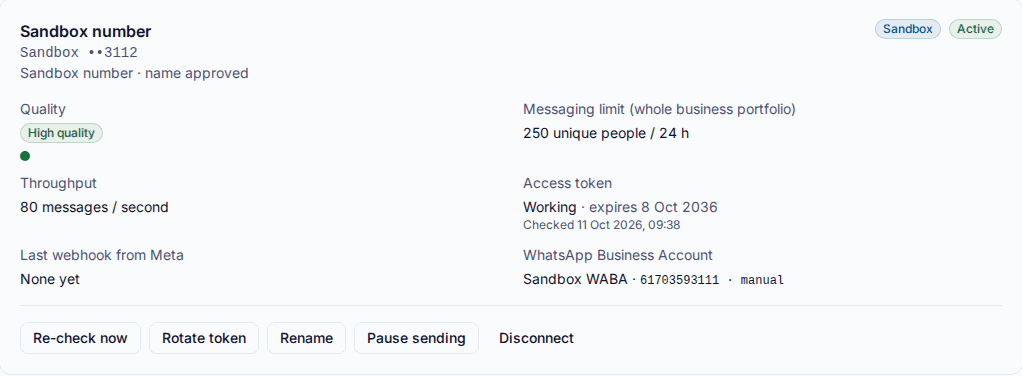
- Each number has a card with its quality rating and history, the messaging limit of the whole business portfolio, throughput, the token's status and when Meta last sent a webhook.
- i-Connect re-checks every connected number every 15 minutes. If the token stops working, the number shows Needs attention and sending from it pauses. Use Rotate token to paste a new one, or Re-check now once it's fixed in Meta.
- Pause sending stops messages from that number until you resume. Disconnect removes it from i-Connect and unsubscribes from its webhooks; it doesn't delete anything at Meta.
- Next: create or sync your templates and bring in contacts with consent.
Still stuck? Write to support@i-connect.world with your organisation's name and what you see on screen.