The inbox gives your whole team one place to answer customers on your official number, so conversations stay with the business and nobody answers the same person twice.
Conversations and who sees them
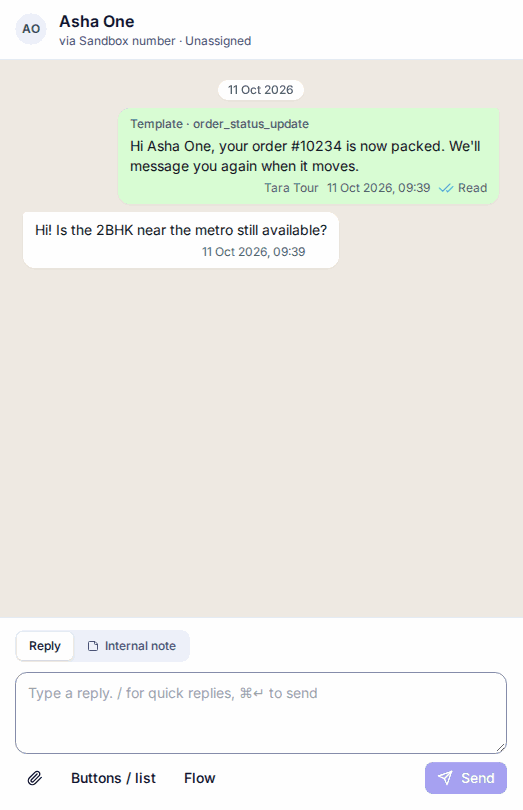
- There is one conversation per customer per number. It starts when the customer first writes to you, so broadcasts don't fill the inbox; the thread still shows the messages you sent before.
- Views: Mine, Unassigned and All, with counts. Filter by status, number and label, or search by name or number.
- Agents see unassigned conversations and their own, and can't open anyone else's, even with a link. Seeing every conversation needs the Owner, Admin or Manager role, or the extra permission See all inbox conversations (see Roles and permissions).
- New messages appear live, without refreshing. The browser tab shows how many conversations are waiting, and you can turn on a sound.
The 24-hour window
WhatsApp lets you send free-form messages for 24 hours after the customer's last message. Each conversation shows a chip such as Window open · closes in 3 h 12 m. It turns amber in the last 2 hours and red when the window has closed.
When the window is closed, the composer switches to template mode: pick an approved template, fill its variables, and send. When the customer replies, the window opens again.
Customer messages are free to receive. Replies inside the window are service messages: Meta gives each number 1,000 free a month and bills the rest to your WhatsApp account. See Pricing.
Assignment
- Owners, Admins and Managers can assign a conversation to anyone who can reply on that number.
- Agents can take an unassigned conversation (or press a), and replying to an unassigned conversation takes it. If two people take it at the same moment, only one gets it.
- Auto-assign (Settings → Inbox, off by default) shares new conversations round-robin among agents who can reply on that number and are online, which means they have i-Connect open.
- The person a conversation is assigned to gets a notification.
- Mark a conversation Resolved when it's done (e) or Pending while you wait for something. A new message from the customer reopens it.
Replying
- Send text, images, video, audio and documents; reply buttons (1 to 3) or a list (up to 10 rows); a quoted reply; a template; or a published WhatsApp Flow.
- Press ⌘/Ctrl + Enter to send. Pressing twice sends once.
- Each message shows its ticks: sent, delivered, read, or failed with the reason in plain words.
Internal notes and labels
- Switch the composer to Internal note to write something only your team sees. Notes are never sent to the customer, and you can mention teammates.
- Add labels to a conversation to sort and filter, for example "site visit" or "follow up".
Quick replies
Save answers you send often in Settings → Quick replies. In the composer, type /, pick one with the arrow keys and press Enter.
Auto-replies and business hours
- Business hours (Settings → Inbox): off by default; when on, 09:00–18:00, Monday to Saturday, in your organisation's time zone. First-response times are measured in business hours.
- Welcome message: sent once, to someone writing to you for the first time.
- Away message: sent outside business hours, once per closed period.
- Reply target (Settings → Inbox, off by default): when a customer has waited longer than your target (5 minutes to 24 hours, counted in business hours when they're on), the conversation is marked Overdue and its assignee is told; nobody assigned, then Owners, Admins and Managers are told. Status → Waiting too long lists them. Your reply clears it.
- Keyword rules (Settings → Auto-replies): reply when a message matches exactly, contains, or starts with your keyword. Rules have a priority, and a cooldown per customer (24 hours by default) so the same person doesn't get the same answer again and again. You can use
{{name}}. - At most one auto-reply answers any message, and STOP or START never get one.
Number masking and read receipts
- Mask phone numbers for agents is on by default (Settings → General). Agents see numbers like +91 98•••••10. Showing the full number needs permission and is recorded in the audit log.
- Read receipts are on by default: opening a conversation shows the customer blue ticks. You can turn them off in Settings → Inbox.
Keyboard shortcuts
| Key | Action |
|---|---|
| j / k | Next / previous conversation |
| r | Reply (go to the composer) |
| a | Assign to me |
| e | Resolve |
| / | Quick replies (in the composer) |
| ⌘/Ctrl + Enter | Send |
Team performance (Reports) shows replies, resolved conversations, conversations open now and first-response times per person; agents see their own row.
Still stuck? Write to support@i-connect.world with your organisation's name and what you see on screen.