An industry kit is a ready-made set for one kind of business: message templates, a web form, WhatsApp Flows, sequences and, where people book, a calendar. The parts are already linked to each other, so you edit the details instead of designing everything from a blank page.
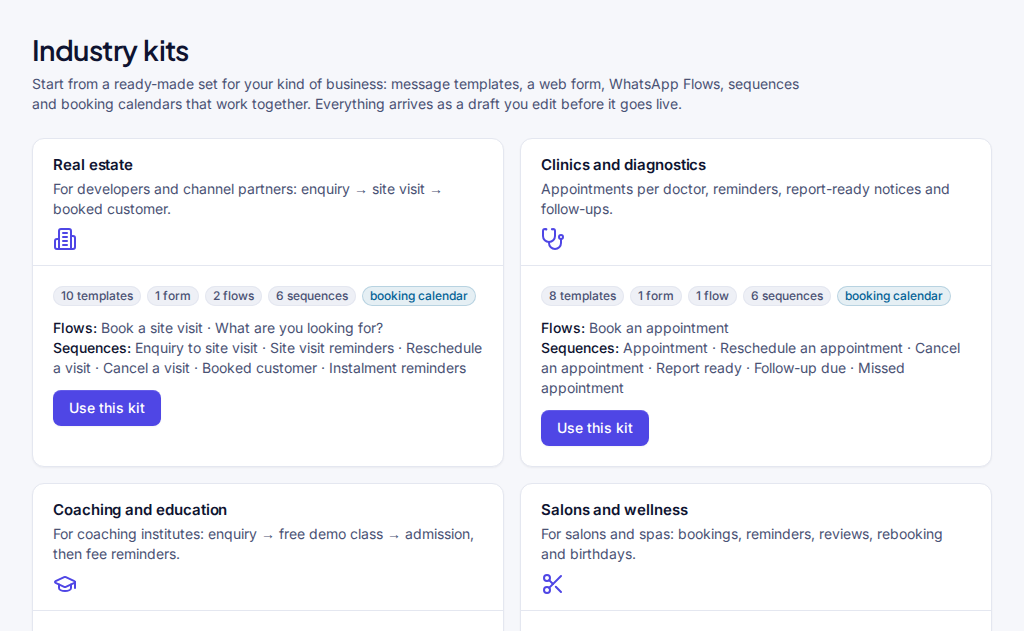
What's in each kit
Every kit also has a web form and the contact fields and tags its parts use.
| Kit | Templates | WhatsApp Flows | Sequences | Booking calendar |
|---|---|---|---|---|
| Real estate | 10 | Book a site visit · What are you looking for? | 6 | Site visits, 4 per slot |
| Clinics and diagnostics | 8 | Book an appointment | 6 | Appointments, places per doctor |
| Coaching and education | 8 | Book a demo class · Find the right course | 4 | Demo classes by batch |
| Salons and wellness | 8 | Book a salon visit | 8 | Salon bookings, 3 chairs per slot |
| Online stores and Instagram sellers | 12 | Order · Return or exchange | 7 | None (3 sample products) |
The sequences cover the everyday follow-ups: confirmations and reminders before an appointment or visit, a feedback question afterwards, follow-ups for enquiries that went quiet, fee or instalment reminders, rebooking and birthday messages, cash-on-delivery confirmation, and shipping updates.
The online store kit also adds three sample products and an Order Flow: customers choose a product and size, give their address and pay by UPI or cash on delivery, all in WhatsApp. See Orders and payments.
Using a kit
- Open Industry kits (below Home in the menu) and choose Use this kit.
- Pick the WhatsApp number the kit sends from. Its templates are created on that number's WhatsApp account.
- Choose Create drafts. You see everything that was created, with links to each part.
- Everything is a draft. Nothing is sent to anyone, no template is submitted to Meta and no Flow is published.
- Nothing is duplicated. Anything you already have with the same name is kept as it is and used: a template with the same name and language, a list or calendar with the same key, a contact field, a Flow or a sequence. Using a kit twice is harmless.
- Using a kit needs permission to edit templates, forms, sequences and lists, so it's for Owners, Admins and Managers.
Before it goes live
- Replace the sample details: the items in each list (your doctors, services, courses), the calendar's times, places and days, and your business name, address and phone number in the templates and sequence messages.
- Submit the templates in Templates. Meta reviews each one; templates with a brochure or photo header need your own file uploaded first.
- For the online store kit, add your products and your UPI ID in Orders before you publish the Order Flow.
- Publish the Flows. Use Check with WhatsApp first; the kit's booking Flows have already passed this check.
- Turn on the sequences once their templates are approved and their Flows published. A sequence won't go live while something it sends isn't ready.
If the form sends a thank-you template, choose it under the form's After submit once Meta has approved it.
How the parts work together
Take the clinics kit as an example:
- A patient books in the Book an appointment Flow: a doctor, a day that doctor works, and one of that doctor's free sessions.
- The booking saves the doctor, date and time on the patient's contact and adds the tag
appt-booked. - That tag starts the Appointment sequence: a confirmation straight away, a reminder the evening before, a message on the morning of the appointment, and a feedback question afterwards. An unhappy answer goes to the clinic manager.
- The confirmation has Reschedule and Cancel appointment buttons. Each starts its own sequence, which cancels the booking and frees the place. Reschedule then sends the booking Flow again.
Bookings made by your front desk or through the API follow the same path. See Bookings and calendars.
Good to know
- Promotional sequences in a kit (new batches, review requests, rebooking and birthday offers, cart reminders) only reach people who agreed to promotions.
- Tags are written with hyphens, for example
appt-booked; use the same spelling in your own sequences. - "Assign" steps in a kit's sequences hand conversations to whoever used the kit. Change them to the right people in the sequence builder.
Still stuck? Write to support@i-connect.world with your organisation's name and what you see on screen.