Let customers order inside WhatsApp: they pick a product and size, give their address and pay online or choose cash on delivery. Online payments go straight to your own Razorpay account or UPI ID. i-Connect never receives or holds your money.
What it does
- Products with a price, optional sizes and optional stock. Sold-out items and sizes disappear from WhatsApp by themselves.
- A checkout Flow in WhatsApp that places the order when the customer taps the last button.
- A payment page for each UPI order: one tap opens the customer's UPI app with the amount and order number filled in.
- The Orders page, where you confirm payments and mark orders packed, shipped and delivered. Each step can message the customer.
The quickest start is the “Online stores and Instagram sellers” kit: it adds sample products, the checkout Flow, the order messages and the sequences.
Set up payments
In Orders → Payment settings:
- Your UPI ID (for example
yourshop@okaxis) and the name shown in the customer's UPI app. Only Owners and Admins can change the UPI ID, and every change is in the audit log. - Cash on delivery on or off, with an optional limit: larger orders must be paid by UPI.
- A shipping fee, and an optional amount above which shipping is free.
- The order number prefix: orders are numbered ORD-1001, ORD-1002 and so on.
- When to remind an unpaid UPI order (2 hours by default) and when to cancel it (24 hours by default).
Razorpay: automatic confirmation
With your own Razorpay account connected, customers pay by UPI, card, netbanking or wallet on Razorpay's checkout, and the order is confirmed the moment they pay. You don't check anything by hand.
- In Razorpay, go to Account & Settings → API keys and make a key. Test keys (
rzp_test_…) take no real money, so try those first. - In Orders → Payment settings → Razorpay, paste the key id and key secret and choose Connect Razorpay. The keys are checked with Razorpay before they're saved, stored encrypted and never shown again.
- You can take payments straight away: i-Connect asks Razorpay about unpaid orders every few minutes.
- For confirmation the moment a customer pays, add the webhook. In Razorpay → Account & Settings → Webhooks, add the Webhook URL and Secret shown in i-Connect, with the event
payment_link.paid. The card then shows when the last event arrived.
- While Razorpay is on, checkout offers Pay online (UPI or card) and cash on delivery. Your UPI ID is kept for when you switch Razorpay off.
- Each order gets its own payment link when the customer taps Pay. The link stops working shortly after your cancel time, and cancelling an order cancels its link.
- The amount Razorpay received is checked against the order total. If it's less, or if a payment arrives after the order was cancelled, the order is flagged for you (refund it in Razorpay), never accepted quietly.
- Before an unpaid order is cancelled, i-Connect asks Razorpay once more, so a payment whose webhook is late isn't lost.
- Razorpay's own SMS and email to the customer are switched off for these links: the customer hears from you on WhatsApp.
- Only Owners and Admins can connect, change or disconnect Razorpay, and every change is in the audit log.
Pay in WhatsApp
Customers can pay without leaving the chat. After the checkout Flow they get WhatsApp's own order message with Review and pay, and pay by UPI, card or netbanking right there. The order is confirmed automatically, and WhatsApp's order page shows its progress: processing, shipped, delivered.
It needs a payment gateway account (Razorpay, PayU or Zaakpay) linked to your WhatsApp account. Some steps are done by others, so i-Connect tracks them for you:
- In Orders → Payment settings → Pay in WhatsApp, choose the WhatsApp number and Create and get the link (or pick a configuration you made in WhatsApp Manager).
- The gateway account's owner opens WhatsApp's link and approves the connection. Links expire; New link makes another.
- WhatsApp tests the connection. The card shows each step as it's done, and checks with WhatsApp every hour (or on Check status now).
- Fill in your business details (name and address): WhatsApp shows them to customers as the seller.
- Until every step is done, checkout keeps using your Razorpay link or UPI ID. It switches to Pay in WhatsApp by itself the moment WhatsApp makes it active.
- It's offered in the checkout Flow only. WhatsApp's order message works only within 24 hours of the customer's last message, so orders you place in the dashboard or through the API use the payment link or UPI ID. If the window has closed when an order is placed, that order moves to your other online payment method.
- A payment is marked paid only after i-Connect has checked it with WhatsApp, never on a notification alone. Failed attempts (for example a wrong UPI PIN) show on the order.
- Cancelling an unpaid order cancels it in WhatsApp too, so it can't be paid afterwards.
Refunds
- Open a paid order and choose Refund…: all of it, or part.
- Paid in WhatsApp or through a Razorpay link: the refund goes back the way the customer paid, from your gateway account, and its status updates when the gateway finishes it.
- Paid to your UPI ID: send the money back from your bank or UPI app, then record it here so the order shows it.
- Only Owners and Admins can refund, and every refund is in the audit log.
Alerts and the morning email
- The bell in the dashboard shows every new order, every UPI reference a customer sends you to check, and any payment that arrives for a cancelled order.
- Owners and Admins also get an email for new orders and for references to check. Turn either off in Orders → Payment settings → Alerts. A payment for a cancelled order is always emailed, because it needs a refund.
- Every morning at 9 AM (India time) there's one email with the last 24 hours (new orders, payments received) and what's waiting: payments to check, orders to pack and to ship. No email on a day with nothing to report. It also lists anything low on stock.
- When a customer sends their UPI reference, they get a WhatsApp message saying it reached you.
“Where is my order?”
- A customer who writes “where is my order”, “track my order”, “order status” or their order number gets their latest orders straight away: paid, packed, shipped (courier and tracking number) or delivered, and a payment link for one that's unpaid.
- Only the customer's own orders are shown, found by their WhatsApp number. An order number from someone else gets no answer.
- Turn it off in Orders → Payment settings → Alerts and customer replies.
Business compliance (India)
India's e-commerce rules ask online sellers to show who they are, a customer care contact and a grievance officer. WhatsApp asks Indian businesses for the same details before catalogs and payments.
- Fill them in once in Orders → Payment settings → Business compliance (India): the legal name and type of business, customer care email (and phone), and the grievance officer's name and email (and phone).
- They're sent to each of your WhatsApp numbers, with the result shown per number, and shown at the foot of every payment page.
Products and stock
- Each product has a name (at most 30 characters, WhatsApp's limit), a SKU of your choice and a price.
- Add sizes or variants if it has them, each with its own stock. Leave stock empty if you don't track it.
- Stock is taken when the order is placed and given back when it's cancelled. The last piece goes to exactly one customer. Each change is in the product's history.
- Turn a product off to stop offering it. A product that has orders can't be deleted.
- Add a photo link (a public https:// link to a JPG or PNG) if you'll use the WhatsApp catalog: it needs a photo for every product.
Import from a spreadsheet
On Products & catalog, Import CSV adds and updates many products at once from Excel or Google Sheets (saved as CSV).
- Columns:
sku,title,price(in rupees), and optionallydescription,stock,sizes,image_urlandactive(yes or no). Download a sample shows the format. - Sizes go in one cell with their stock after a colon:
S:10|M:5|L(L not tracked). - Products are matched by SKU. A new SKU is added; an existing one is updated with the cells you filled in, and empty cells leave it as it is. Nothing is deleted: set
activeto no to stop offering one. - Preview first: it shows what happens to every row, and the rows with a problem (a price that isn't a number, a name over 30 characters, a SKU twice) and why. Those rows are left out; the rest are imported.
- Up to 2,000 products and 2 MB per file.
To manage stock and prices in a Google Sheet, paste its link under Keep a Google Sheet in sync. Share the sheet with “Anyone with the link” as a viewer (or publish it to the web as CSV). It's imported straight away and then every hour; if it can't be read, the reason is shown there.
WhatsApp catalog and carts
WhatsApp has its own catalog: a shop icon on your profile and in chats where customers browse your products, add several items and sizes to a cart and send it to you. It's a Meta catalog, so the same one also serves your Instagram and Facebook shops.
- On Products & catalog → WhatsApp catalog, choose your WhatsApp number and Find its catalog. Connect the catalog already on your WhatsApp account, another catalog of your business by its id (Commerce Manager), or a new empty one. WhatsApp allows one catalog per WhatsApp account.
- Your products are sent to the catalog, and every change after that within a few minutes (prices, stock, sold-out sizes). A product with sizes becomes one item per size. Products without a photo are held back and listed under To fix.
- Meta reviews each item, from a few minutes to a day. Check Meta's review shows what's approved, in review or rejected, and why.
- Choose the Checkout for carts: when a customer sends a cart, they get this Flow for their delivery address (filled from their last order) and how to pay. The store kit's “Checkout your cart” is ready-made; any checkout Flow works if you tick This checkout is for carts sent from your WhatsApp catalog.
- A cart becomes one order with all its items, at today's prices. Stock is taken for every item when the order is placed; if one has sold out meanwhile, nothing is taken and the customer is asked to send a new cart.
- Items that are no longer sold are left out of the cart, and the customer is told.
- Without a checkout for carts, the customer is told you'll reply and your team gets a notification to answer in the inbox.
- Already have products in a Meta catalog? Import from the catalog brings them in, matched by SKU (Meta's content id).
- The sequence step Send catalog sends the whole catalog, or up to 30 chosen products, inside the 24-hour window. The store kit's “Browse the catalog” sequence sends it when someone writes “Catalog” or “Browse”, and the Order Flow instead while no catalog is connected.
Managing catalogs needs Meta's permission for i-Connect's app (catalog management). Until Meta has approved it, connecting or sending products shows a message saying so; your products and checkout Flow keep working as before.
The checkout Flow
In the Flow builder, turn on This Flow places an order and say which question is the product, size, quantity, payment choice and address. Questions can show:
- Your products in stock, with their price where it fits.
- Sizes of the product chosen earlier, only the ones in stock. For a product with size and colour, this lists each combination, such as "M / Red".
- Colours of the size chosen earlier, on a later screen, if you'd rather ask size and colour apart. See Size and colour together.
- Payment choices: pay in WhatsApp (when it's live), otherwise pay online through Razorpay or your UPI ID, and cash on delivery if it's on and the order is within your limit.
- The order summary: items, shipping and total, on the last screen.
Turn on Start the address with the customer's last order in the checkout card, and repeat customers see their name and address already filled in; they only check it. The store kit's Order Flow has it on.
The order is placed when the customer taps the last button. If the item sold out a moment earlier, they stay on the screen and are asked to pick another. A customer can order up to 10 of one item.
Shopify and WooCommerce
If you already sell on Shopify or WooCommerce, connect the store on Products & catalog → Shopify & WooCommerce (Owners and Admins). The store stays where you manage products and ship; i-Connect adds WhatsApp.
- Shopify: since 2026, an app for your own store is made in Shopify's Dev Dashboard. Create one with the scopes shown on the page and customer name, phone and address access, install it on your store, and paste its client ID and client secret. A store with an older custom app can use its Admin API access token and API secret key instead.
- WooCommerce: make a REST API key with Read/Write permission (WooCommerce → Settings → Advanced → REST API) and paste the site address, consumer key and consumer secret. The site must use https.
- Only stores selling in Indian rupees can connect. Keys are stored encrypted and never shown again.
Once connected:
- Products, sizes, prices and stock come from the store, straight away and then within minutes of every change (and a full check every 6 hours). A product you already had here with the same SKU is linked rather than copied. Sizes with their own price show it in the checkout. Edit products in the store; here you can only turn one on or off for WhatsApp.
- WhatsApp orders go into the store: cash-on-delivery orders straight away, online ones once they're paid. The store takes the stock and is where you ship. If the store refuses one, the order here says so and what to do.
- Shipping updates reach the customer on WhatsApp. Fulfil the order in Shopify (with the courier and tracking number), or mark it Completed in WooCommerce, and the order here becomes Shipped, which starts the store kit's “Order shipped” message. Shopify's delivered status marks it Delivered. An order cancelled in the store is cancelled here.
- Orders placed on your website can get WhatsApp updates too: confirmation, the cash-on-delivery check and shipping. This is off until you turn it on, because WhatsApp only allows messages to people who agreed to them: turn it on only if your checkout says you'll send order updates on WhatsApp. These orders show here with the store's number and are managed in the store.
Disconnecting removes i-Connect's webhooks from the store and forgets the keys. Your products stay here as ordinary products you can edit. Abandoned-checkout reminders for Shopify stop too.
Shipping with Shiprocket
Connect your Shiprocket account on Orders → Shipping (Owners and Admins) to book couriers from your orders and let tracking update them by itself.
- In Shiprocket, open Settings → API → Add New API User. Use an email that isn't your Shiprocket login, give it access to orders, couriers, labels, tracking and pickup addresses, and allow buyer details. Paste its email and password (shown once) in i-Connect.
- Choose the pickup address shipments leave from (add and verify it in Shiprocket first) and your usual parcel weight and size.
- Recommended: in Shiprocket → Settings → API → Webhooks, paste the webhook URL and token shown in i-Connect. Without it, i-Connect asks Shiprocket for news every 30 minutes.
- Booking: on a paid or cash-on-delivery order, Ship with Shiprocket… shows the couriers and prices for its pincode. Pick one, or let Shiprocket choose by your courier priority. i-Connect creates the shipment, gets the AWB, asks for the pickup and makes the label; the order becomes Packed. The charge comes from your Shiprocket wallet.
- Tracking: when the courier picks it up, the order becomes Shipped with the courier and AWB, which sends the customer's “Order shipped” message. Out for delivery starts the kit's “Out for delivery” message, and delivery marks it Delivered.
- Problems are flagged on the order: a parcel coming back to you (RTO), a failed delivery attempt (handle it in Shiprocket's NDR) or a lost or damaged one.
- Cancelling an order cancels its shipment, as long as the courier hasn't collected it.
- Pincode check: while connected, the checkout asks Shiprocket about the customer's pincode. A pincode no courier serves is stopped before the order is placed, and cash on delivery is hidden where couriers don't offer it. If Shiprocket doesn't answer, the order goes through. You can turn this off.
Abandoned checkout reminders
On Orders → Abandoned checkouts, turn on reminders and choose how long to wait after the customer's last step (15 minutes to 24 hours). A checkout counts as abandoned when the customer:
- picked something in your checkout Flow but didn't place the order,
- sent a cart from your WhatsApp catalog and didn't check out, or
- left your Shopify checkout with a phone number filled in (when Shopify is connected).
Each one gets one reminder, and a customer at most one a day:
- Inside WhatsApp's 24-hour chat window, the reminder is a message in the chat with the checkout again, so they carry on with one tap.
- Outside it, WhatsApp only allows a Marketing template, and only to customers who agreed to marketing messages. i-Connect
gives those customers the
cart-abandonedtag and the cart's details, and your “Cart reminder” sequence (from the store kit) sends the approvedsh_cart_remindertemplate. Its Complete order button opens the checkout again: your Shopify checkout, or the chat with the checkout ready to resend. - Customers who can't be reminded are listed with the reason, such as not having agreed to marketing messages.
An order from the same customer within 7 days closes the checkout: recovered if it came after the reminder, ordered anyway if before. The tab shows the last 30 days: checkouts abandoned, reminded and recovered, and the sales recovered.
Kits installed before October 2026 have an older sh_cart_reminder whose button goes to the i-Connect website. Change the button's
address to https://go.i-connect.world/r/ followed by the variable (WhatsApp reviews the template again).
How customers pay
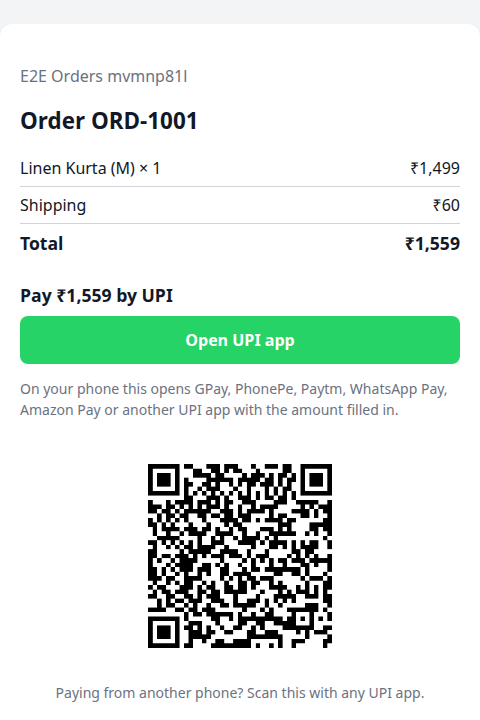
- UPI: the customer gets a WhatsApp message with a Pay ₹… button. It opens a payment page with an Open UPI app button (GPay, PhonePe, Paytm, WhatsApp Pay, Amazon Pay or any UPI app) and a QR code for paying from another phone.
- After paying, the customer can send their 12-digit UPI reference from the same page. The order then shows Paid? Check for you.
- You check the payment in your bank or UPI app and tap Mark as paid. The customer gets a “payment received” message.
- Cash on delivery: the customer gets an order confirmation straight away.
- An unpaid UPI order gets one reminder, then is cancelled and its stock goes back. An order with a UPI reference waiting for you is never cancelled this way.
The Orders page
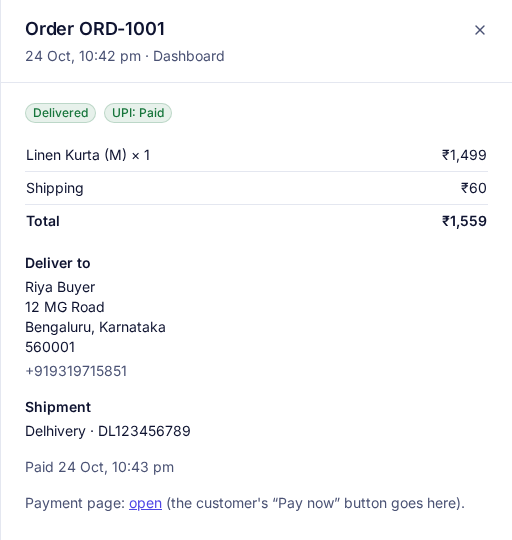
- Filter by status and payment, or search by order number, name or phone.
- Open an order to see its items, address and payment, then Mark as paid, Packed, Shipped (with the courier, tracking number and expected delivery) and Delivered.
- A UPI order must be marked paid before it can be packed or shipped. A shipped order can't be cancelled.
- New order for an order taken on a call or in Instagram messages: the customer gets the same WhatsApp messages as a checkout Flow order.
- Export CSV downloads the orders placed between two dates (up to a year), with items, amounts, payment, courier and delivery address, for your accounts or a courier's bulk upload. It holds customers' personal details.
- The inbox shows a contact's latest orders next to the chat, so your team can confirm a payment without leaving the conversation.
Messages and sequences
- Inside WhatsApp's 24-hour window, order messages are sent as normal messages. Outside it they use the kit's Utility templates (order placed, payment received, payment reminder, cancelled unpaid), which must be approved by WhatsApp first.
- Every order saves the order number and value on the contact and adds the
customertag (andcod-orderfor cash on delivery). - Shipping saves the courier, tracking number and expected delivery and adds
order-shipped; delivery addsdelivered. The kit's “Order shipped” and “Delivered: feedback” sequences start on these tags.
Who can do what
- See orders and products: Owners, Admins, Managers, Agents and Analysts.
- Place orders, mark them paid, shipped or cancelled: Owners, Admins, Managers and Agents.
- Change products, import them and send them to the catalog: Owners, Admins and Managers.
- Export orders: Owners, Admins and Managers (and anyone given the export permission).
- Change the UPI ID and payment settings, connect the WhatsApp catalog, Shopify, WooCommerce or Shiprocket: Owners and Admins.
- Book and cancel Shiprocket shipments: everyone who can update orders.
- Your own systems can list products, place orders and update them through the API, and get
order.placed,order.paidandorder.status_changedwebhooks. See the API.
Good to know
- Payments to your UPI ID are confirmed by you, because the money goes straight to your account. Connect Razorpay, or set up Pay in WhatsApp, for automatic confirmation.
- A checkout Flow order has one product, with a size and a quantity. For several items in one order, use the WhatsApp catalog's cart.
- Checkout Flows need to be published before you can send them, and only inside the 24-hour window, like any Flow. A customer can also start by writing “Order”, “Buy” or “Shop” when the kit's sequence is on.
Still stuck? Write to support@i-connect.world with your organisation's name and what you see on screen.